
Admin
Set up, run, and manage your game session.
Mobile App
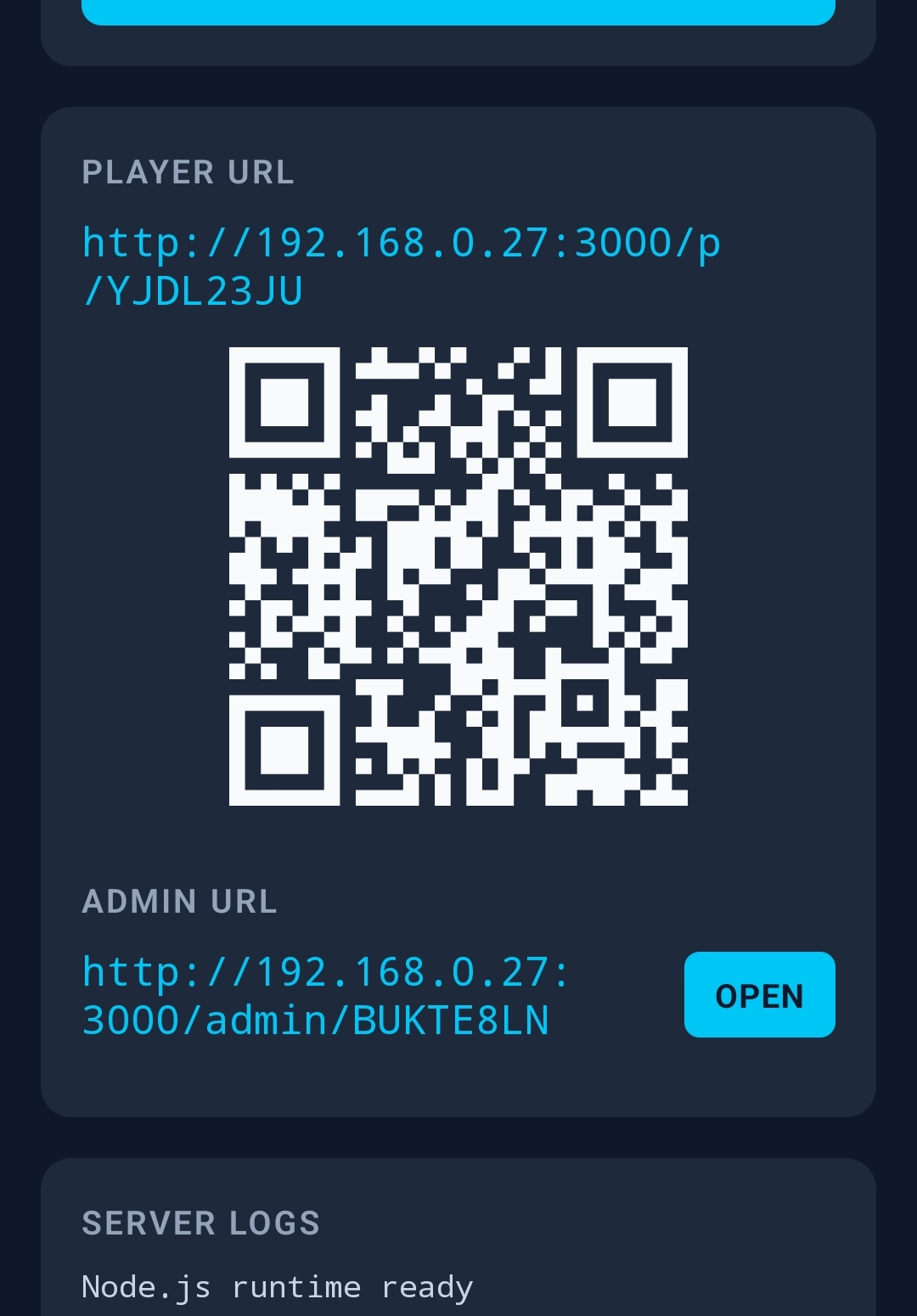
- When you start the server, you send players the link to join or they can scan the QR code off your device.
- When all players have the link, click "open" to run the game session as the admin.
- Players must be on the same local network (WiFi) as you to be able to join the game session.
- If you are on a public WiFi or there is no WiFi available, then players can join the game session if they login to your hotspot network.
Admin Console
The admin console is the control centre for the game host. From here you select the game to play and configure it, manage players, and start rounds.
Console Overview
The top of the admin console gives you the option of being a player-admin or admin-only.
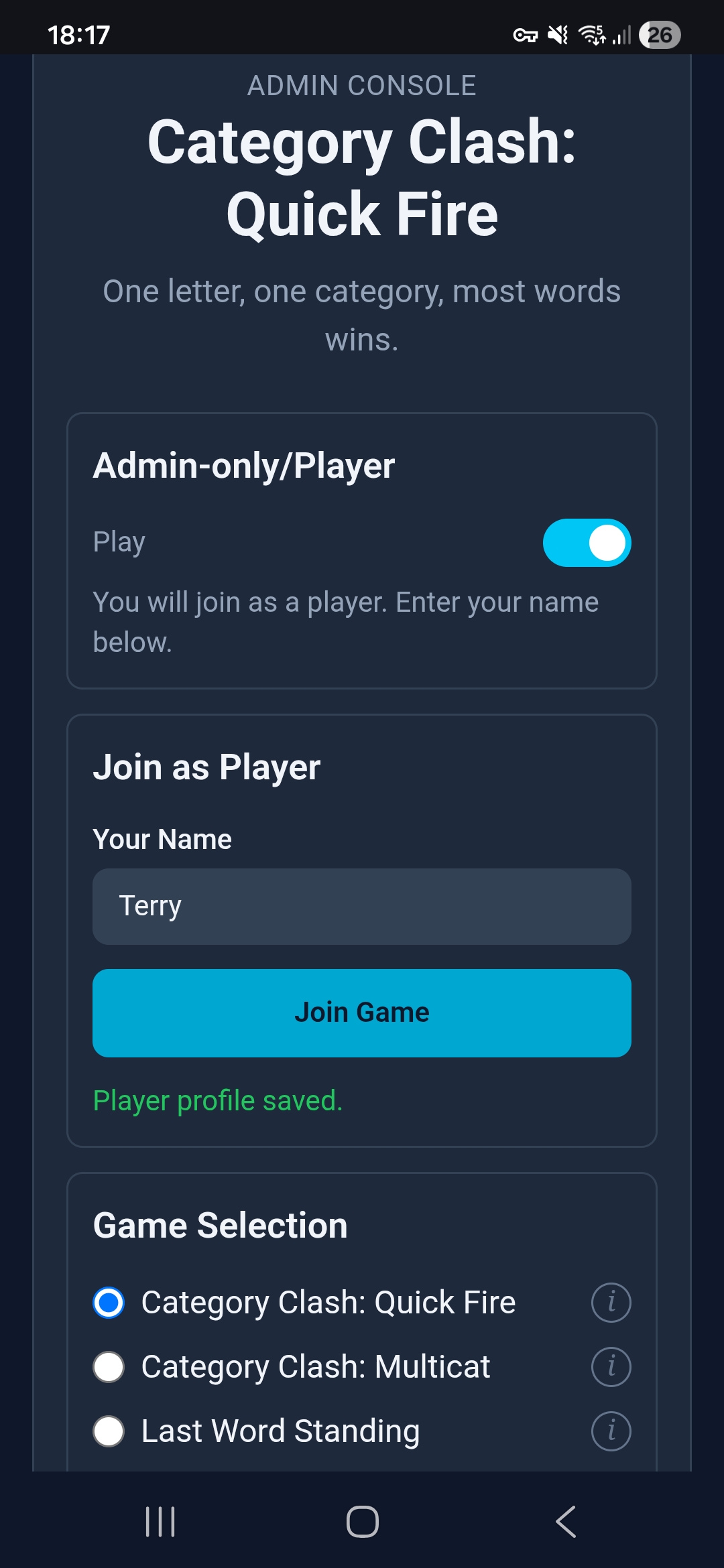
Player and admin.
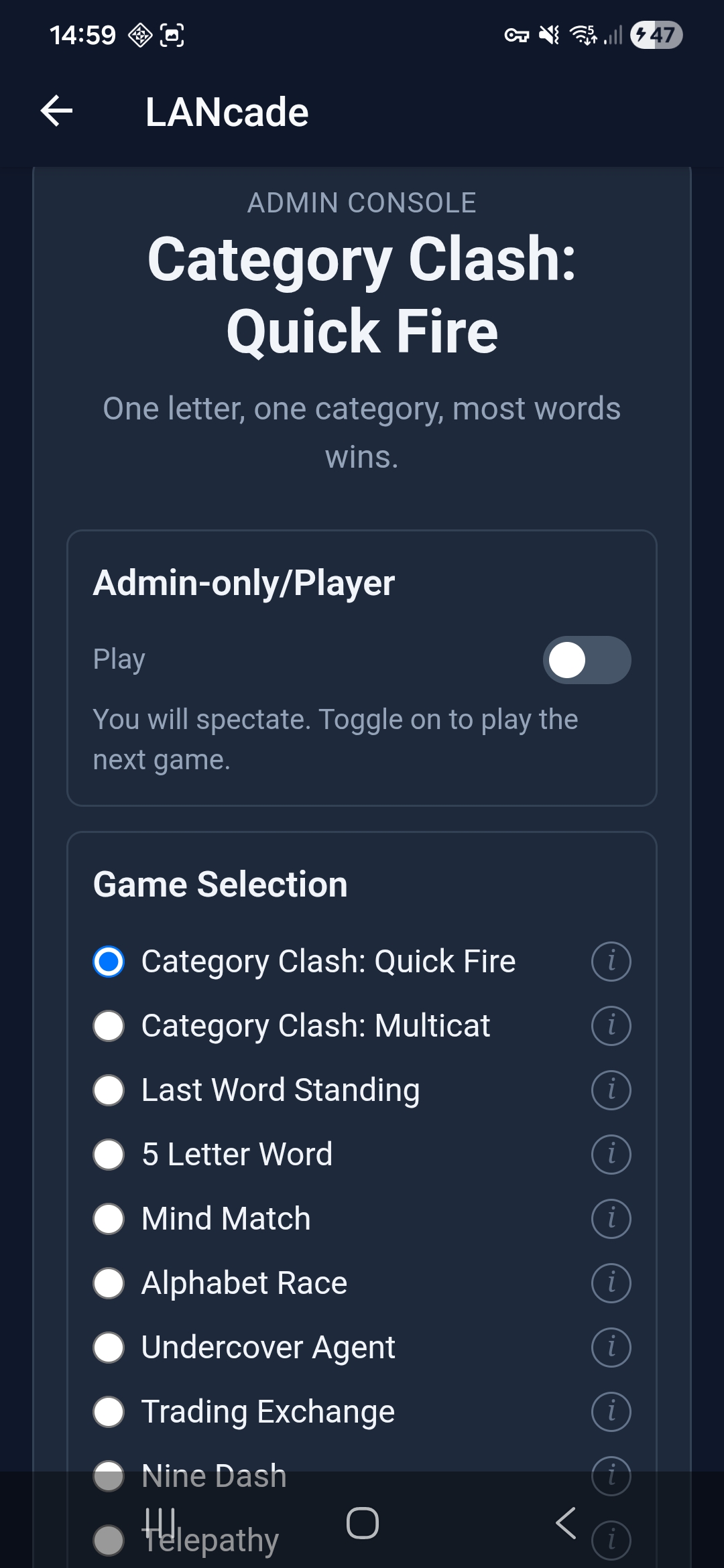
View-only admin.
Game Configuration
Each game has its own configuration panel. Choose categories, set timers, and customise game-specific options before starting.
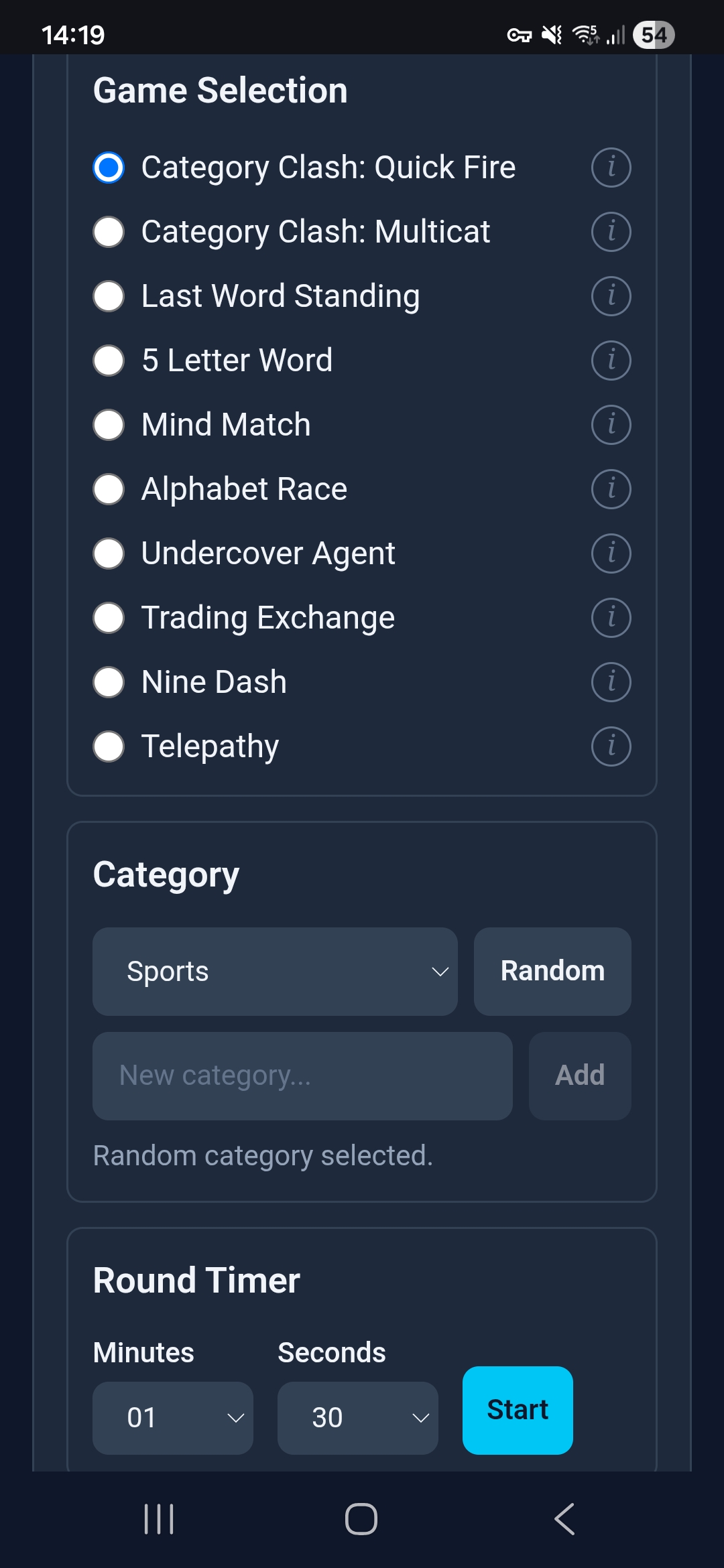
Choose the category or add your own for Category Clash: Quick Fire. Then set the round length and start.
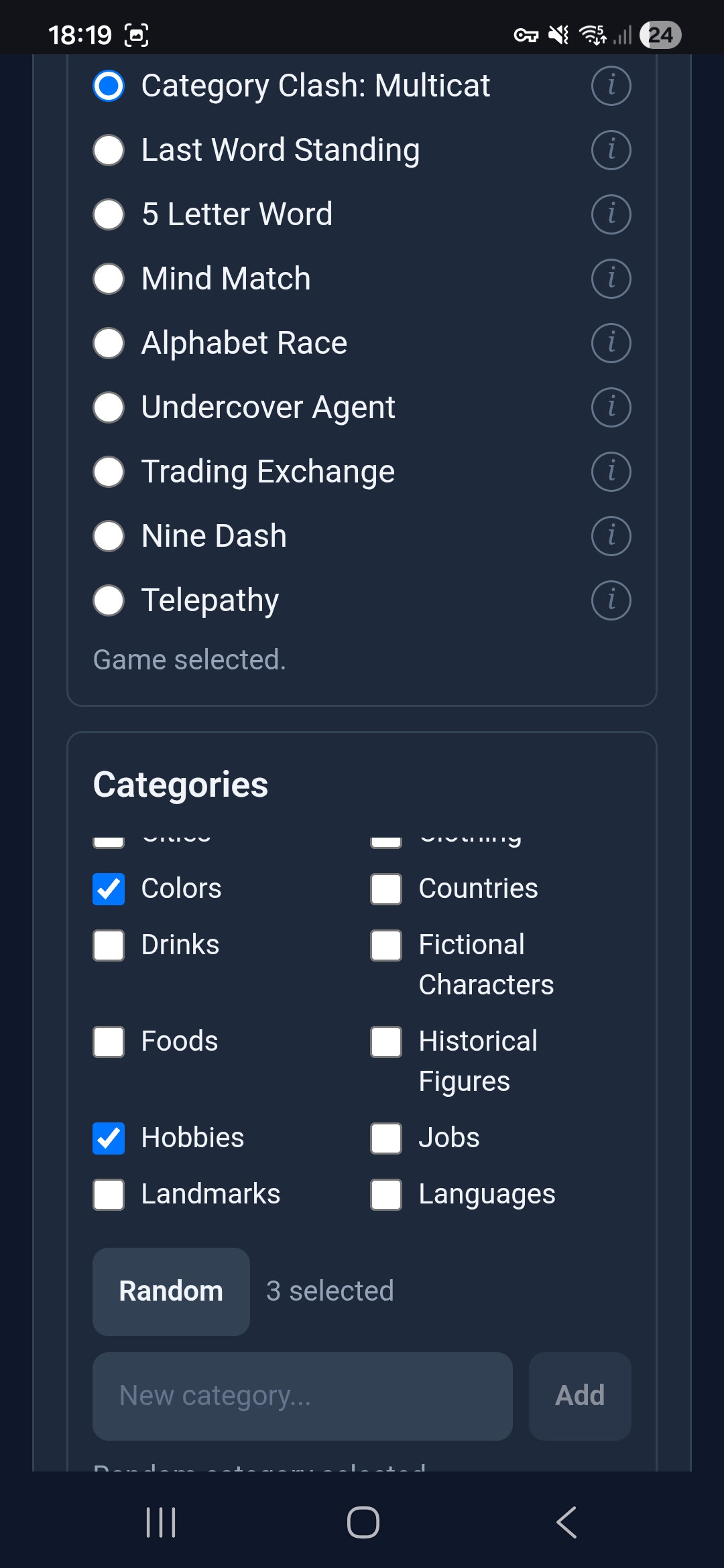
Choose the categories and/or add your own for Category Clash: Multcat. Then set the round length and start.
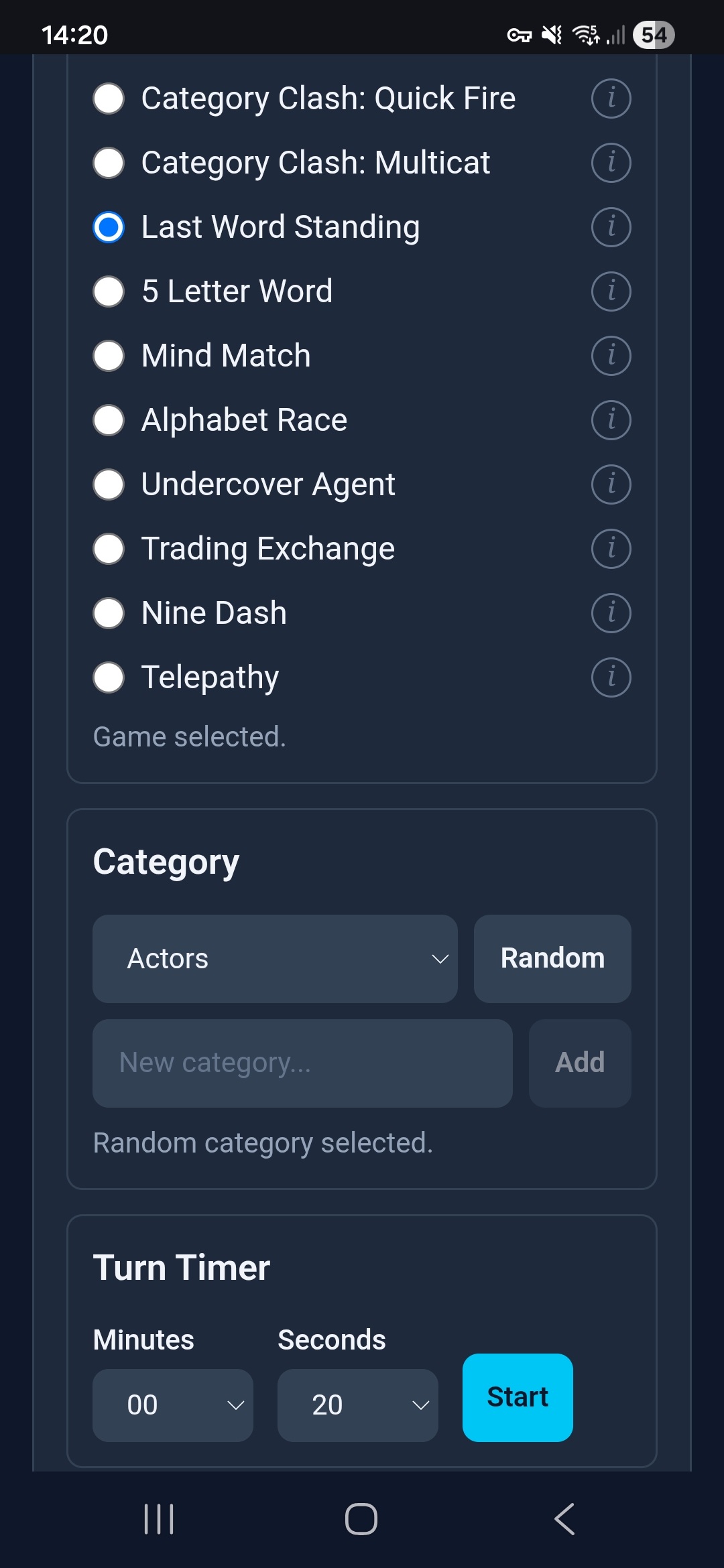
Choose the category or add your own for Last Word Standing. Then set the elimination timeout and start.
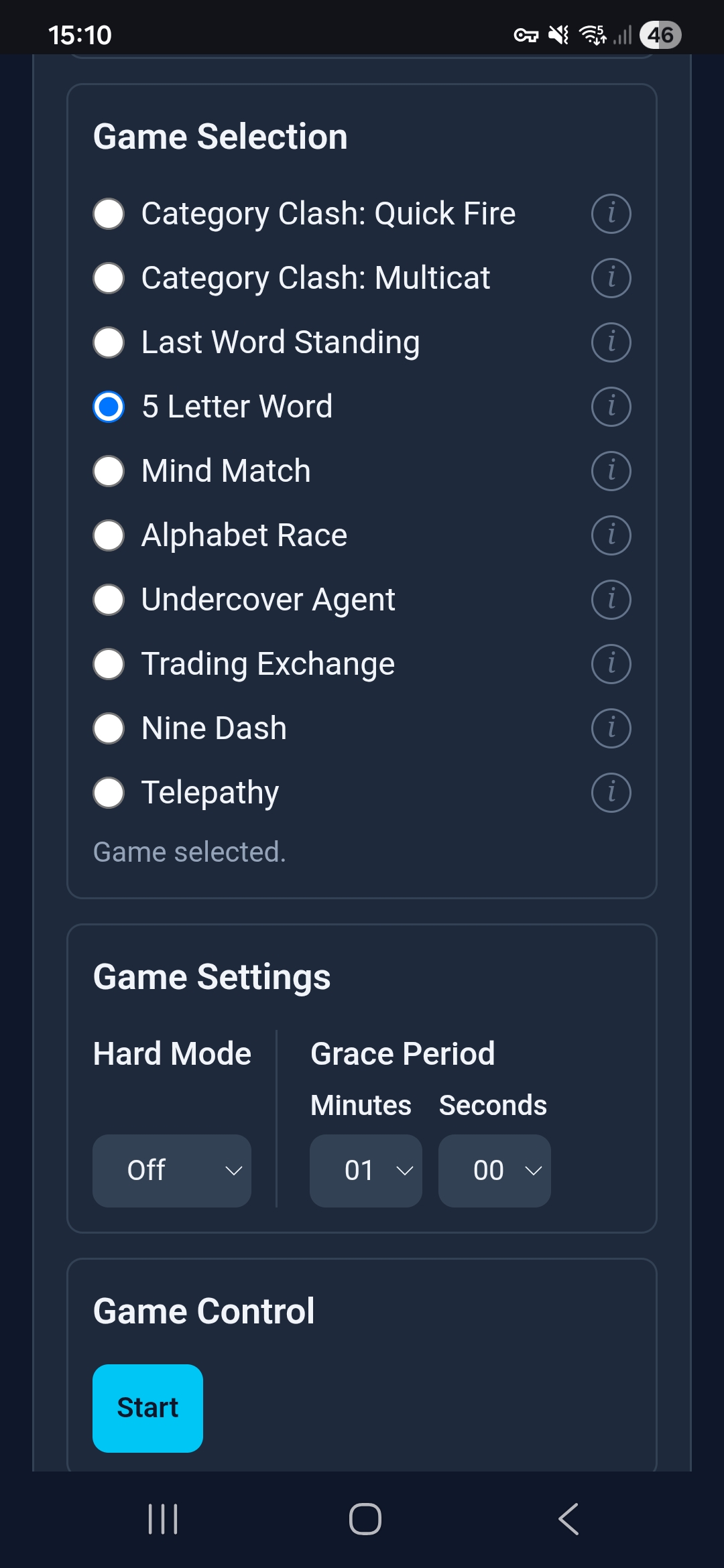
Choose whether to turn on hard mode and how long players get to solve after the winner completes for 5 Letter Word.
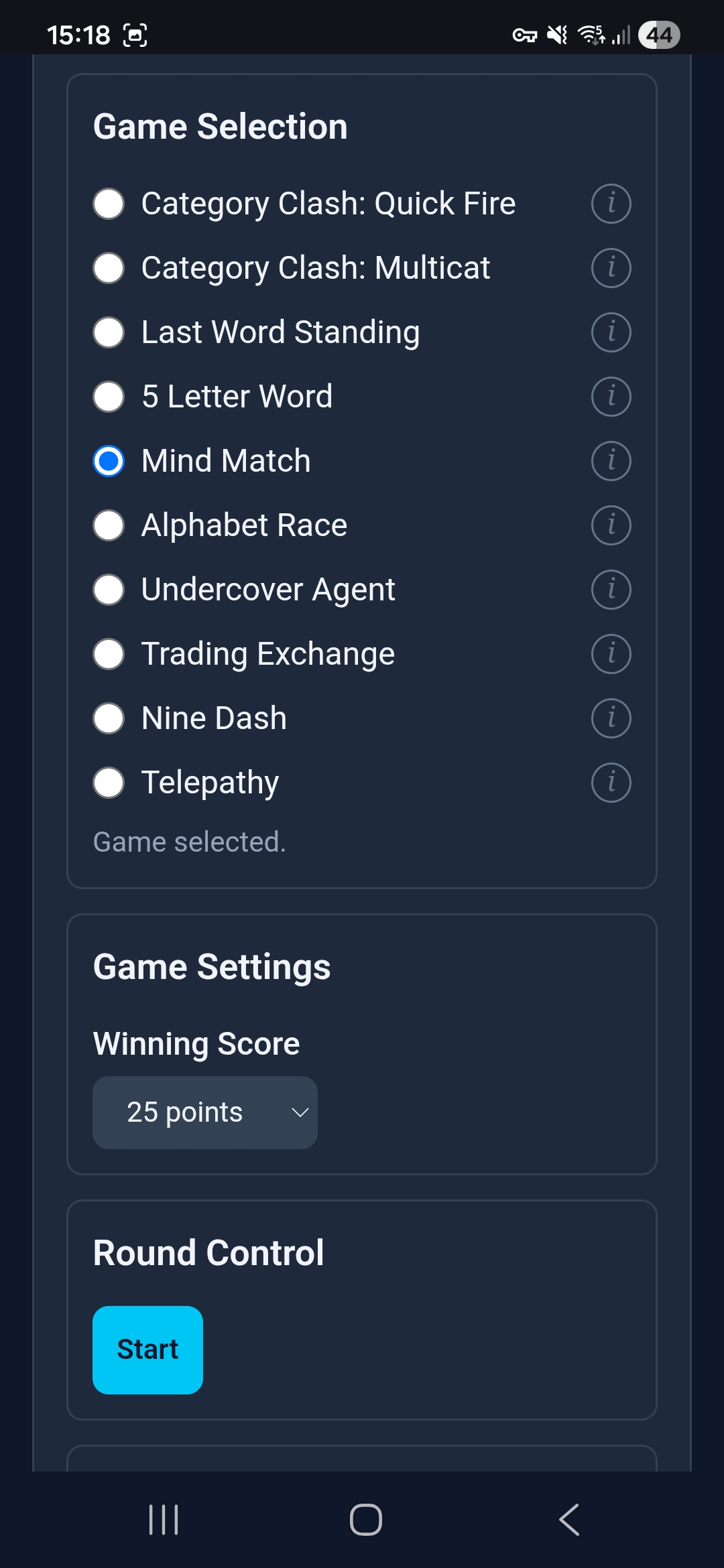
Choose how many points a player must accumulate to win Mind Match.
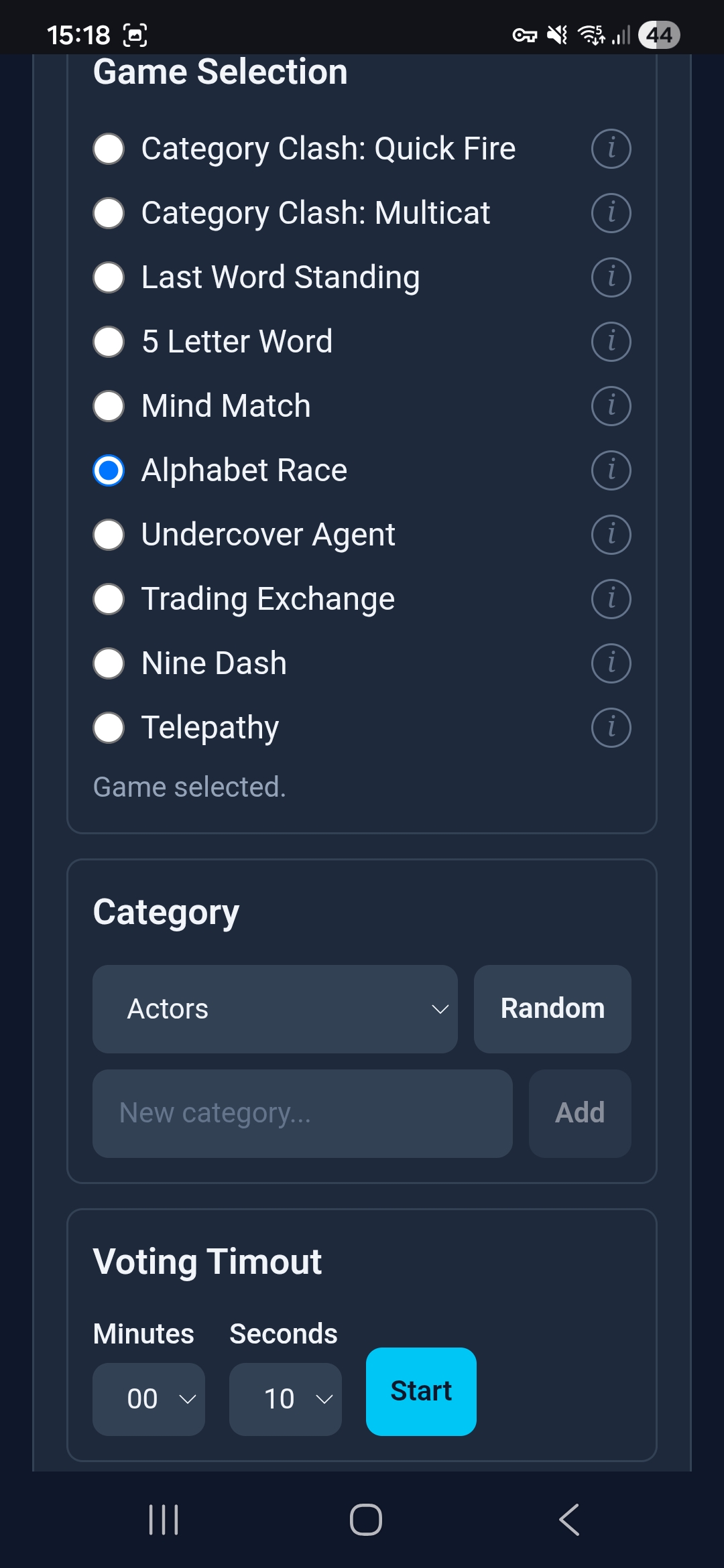
Choose the category or add your own for Alphabet Race. Then set the vote timeout and start.
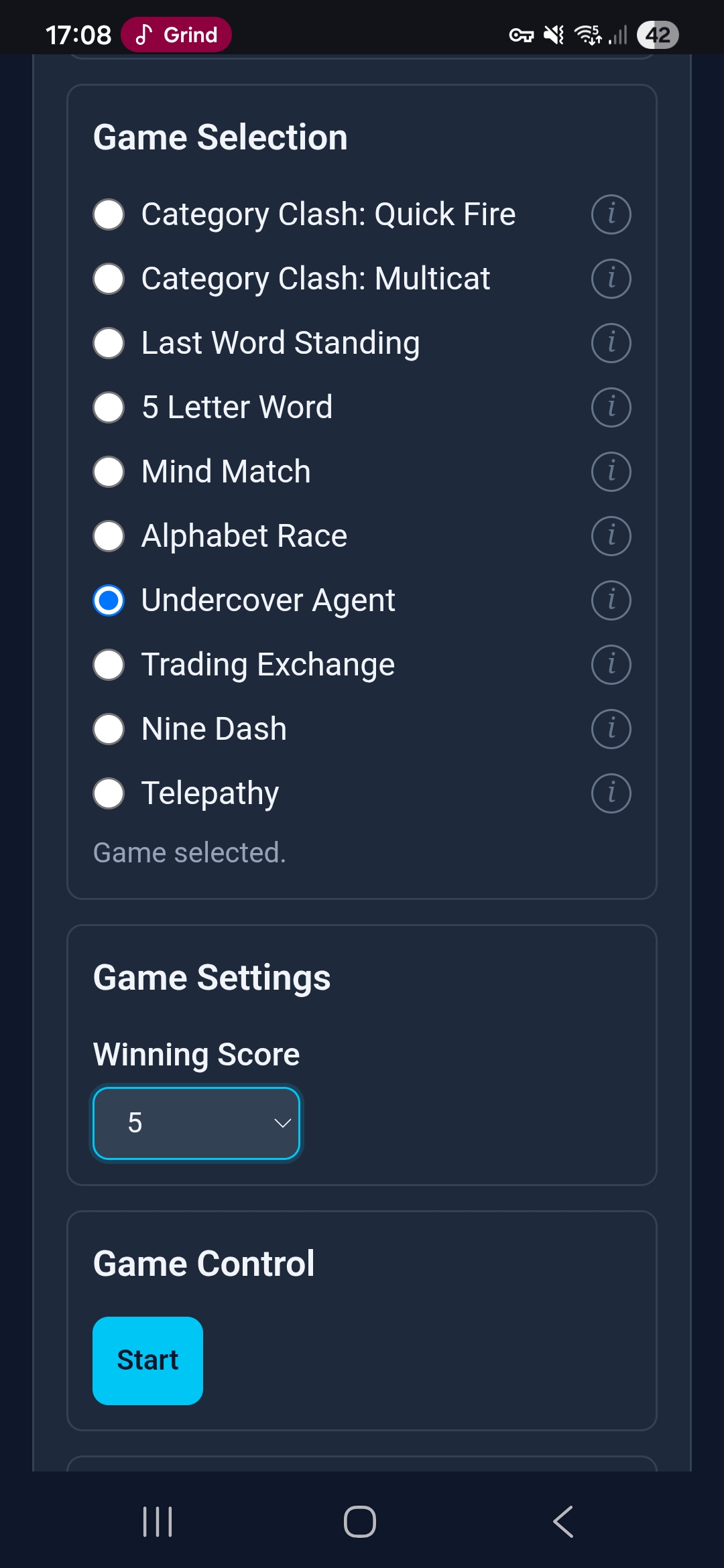
Choose the number of rounds for Undercover Agent and start.
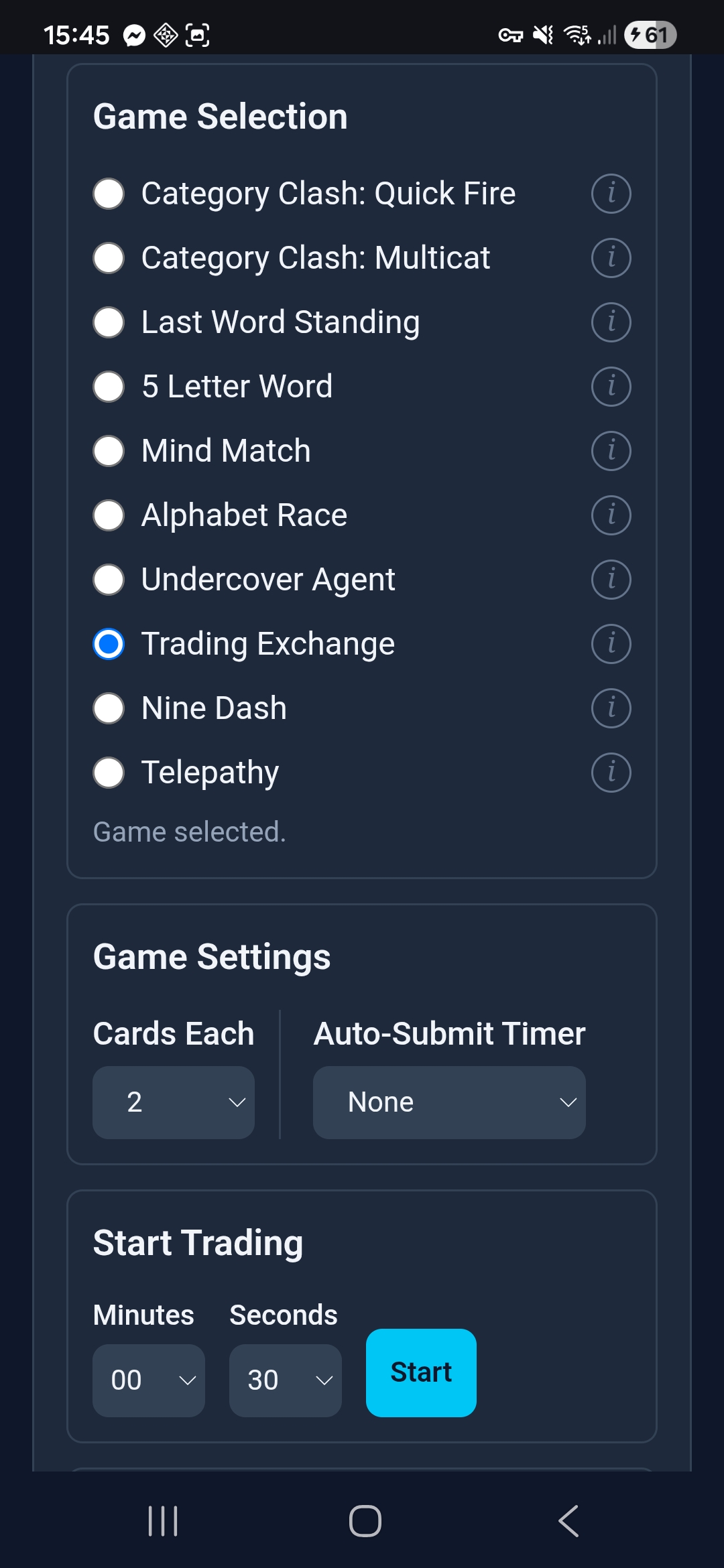
For Trading Exchange, choose the number of cards per player, set an auto-submit timer if desired, and choose the amount of time without trades before the next set of cards will be revealed.
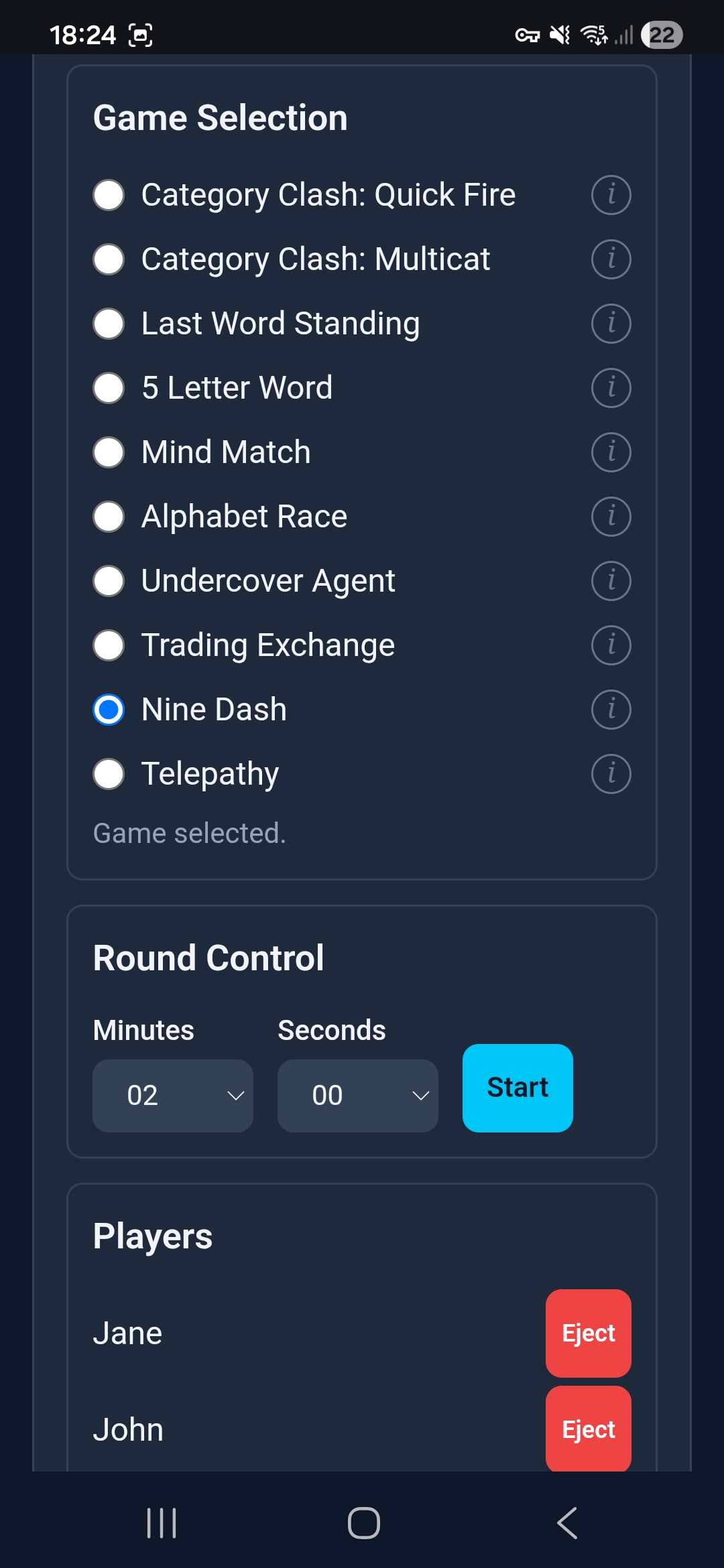
Choose the round length for Nine Dash, then start.
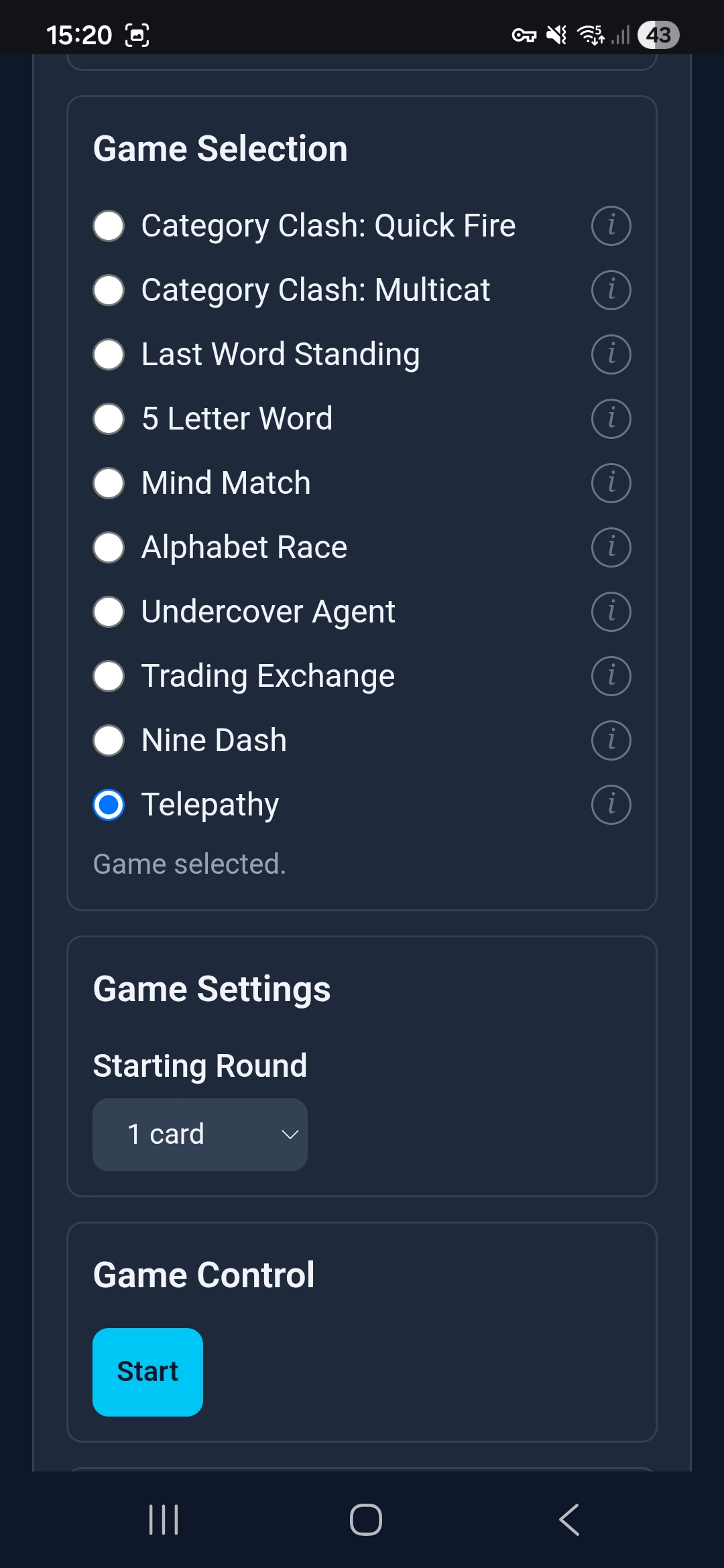
Choose the starting round (cards-per-player) for Telepathy, then start.
Cross-Game Word Reuse
Games that share a word pool show a Prevent reusing words toggle.
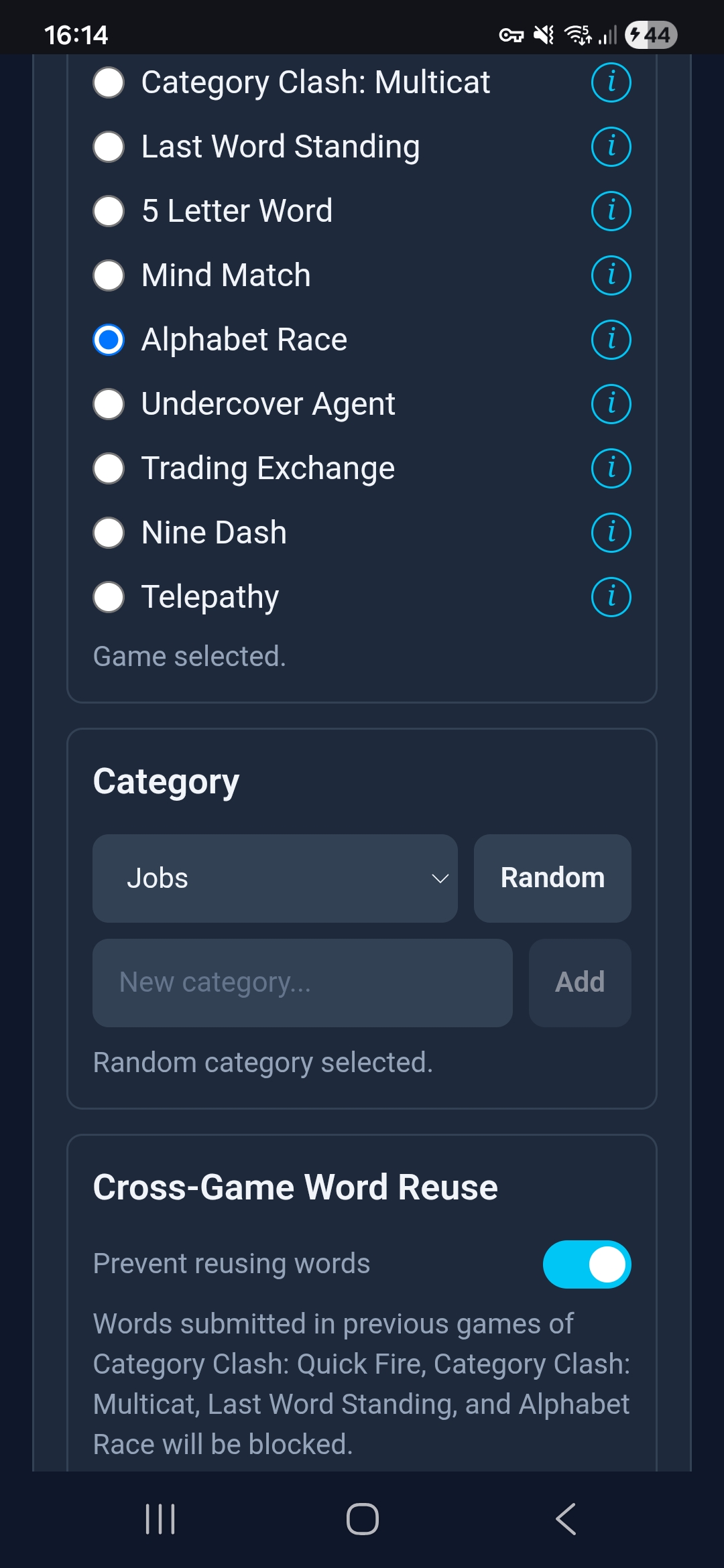
Enabling the prevention of word reuse means words will only be permitted once per session.
In-Game Controls
During a game, the admin can manage the round or end it early.
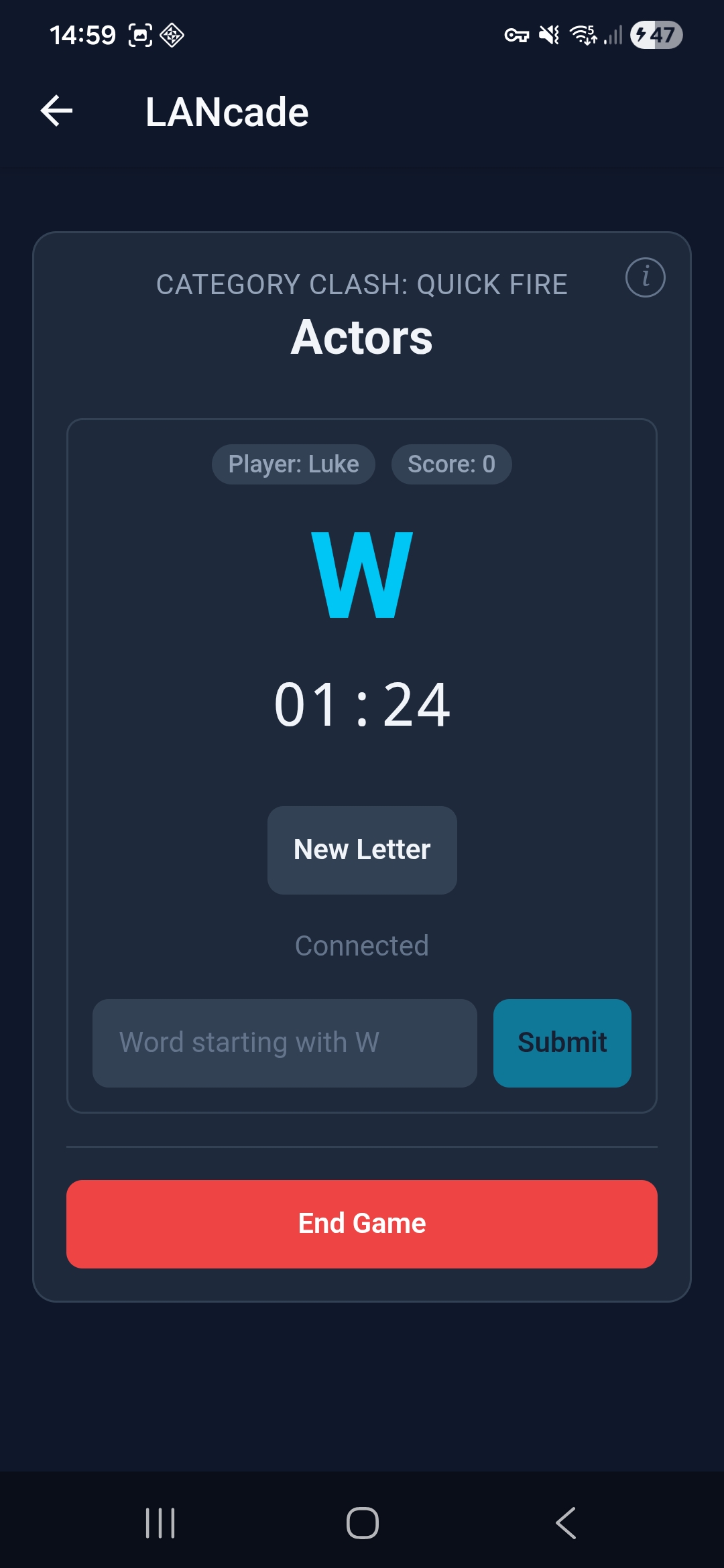
Different games give the admin different responsibilities. Category Clash games allows them to regenerate the letter.
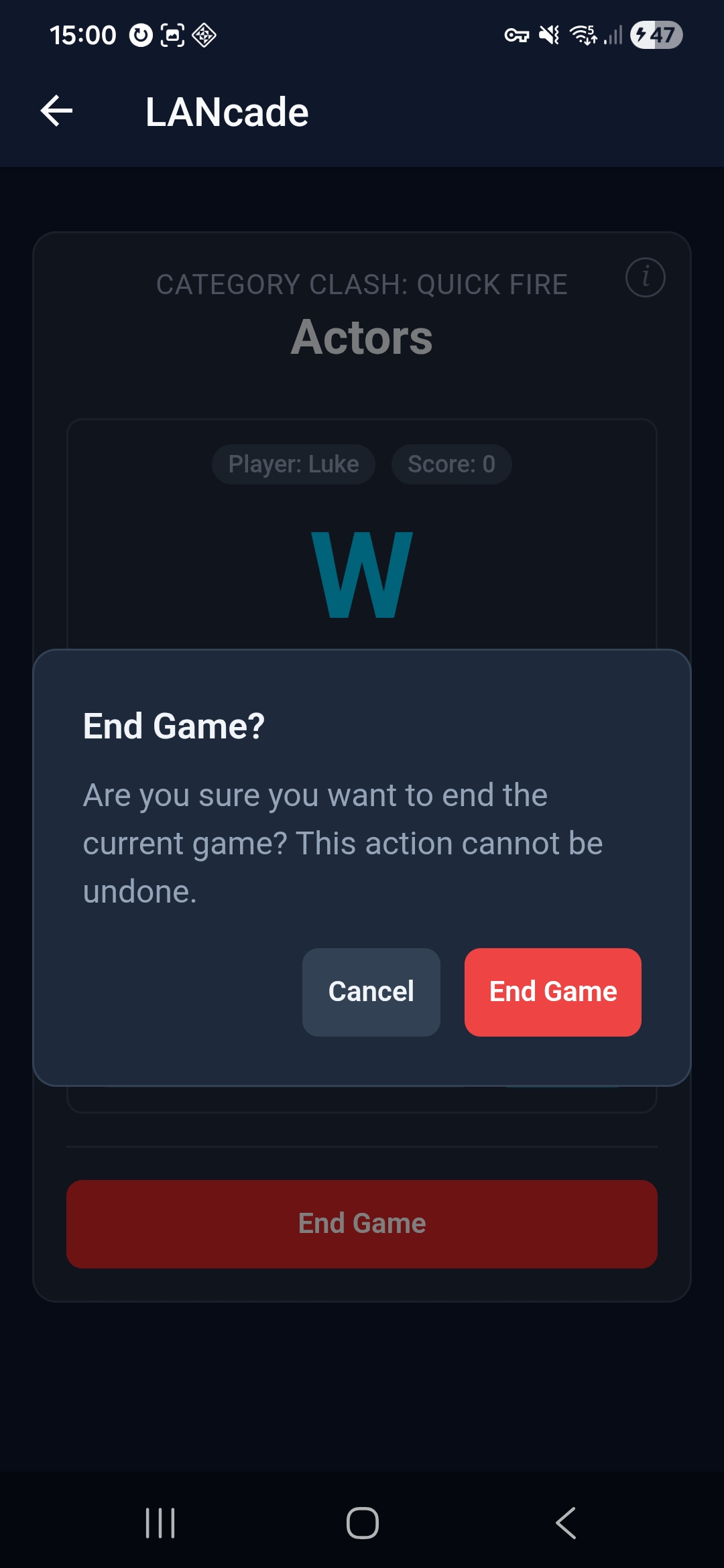
Forcing an end to the game will lose all progress in the current game and go back to the Admin Console.
View Only
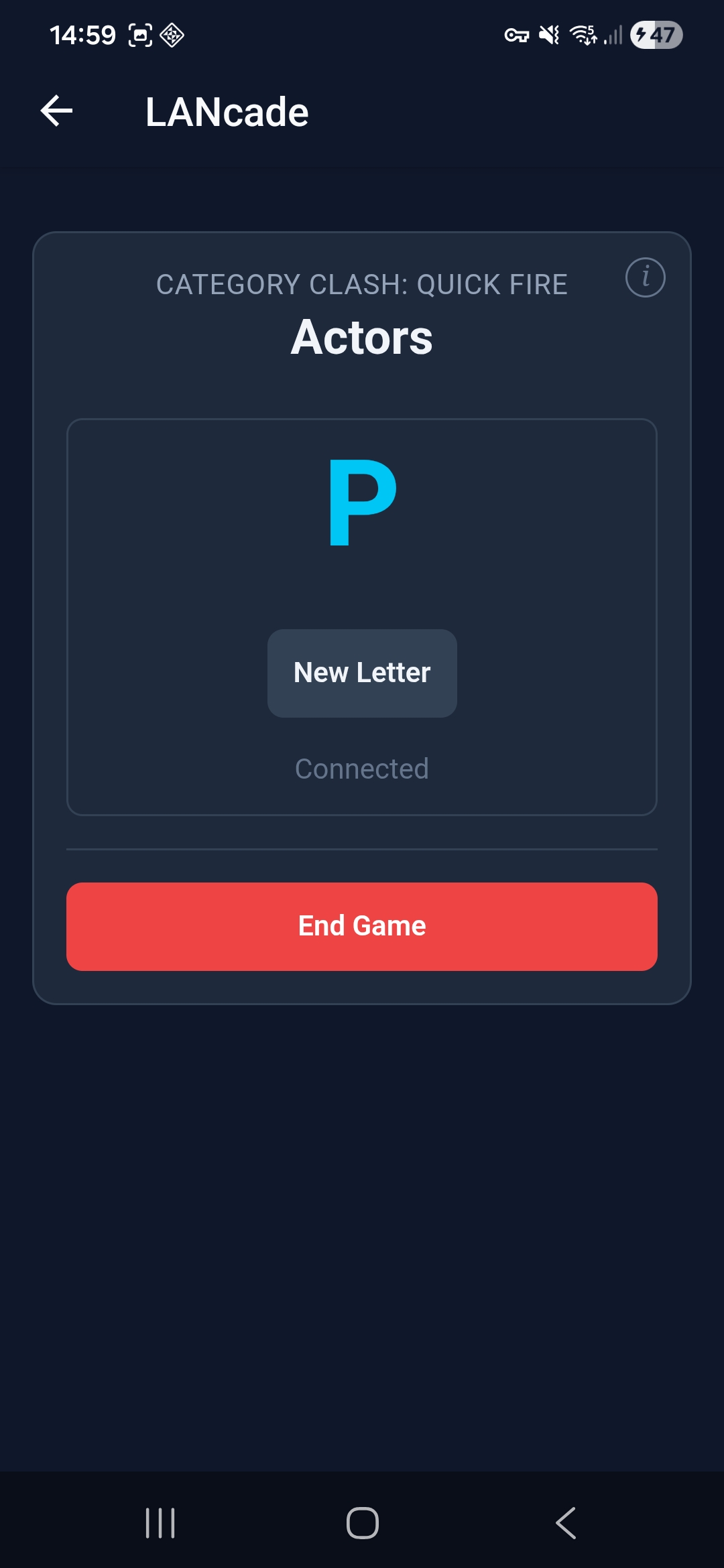
View-only mode allows the admin to observe without playing.
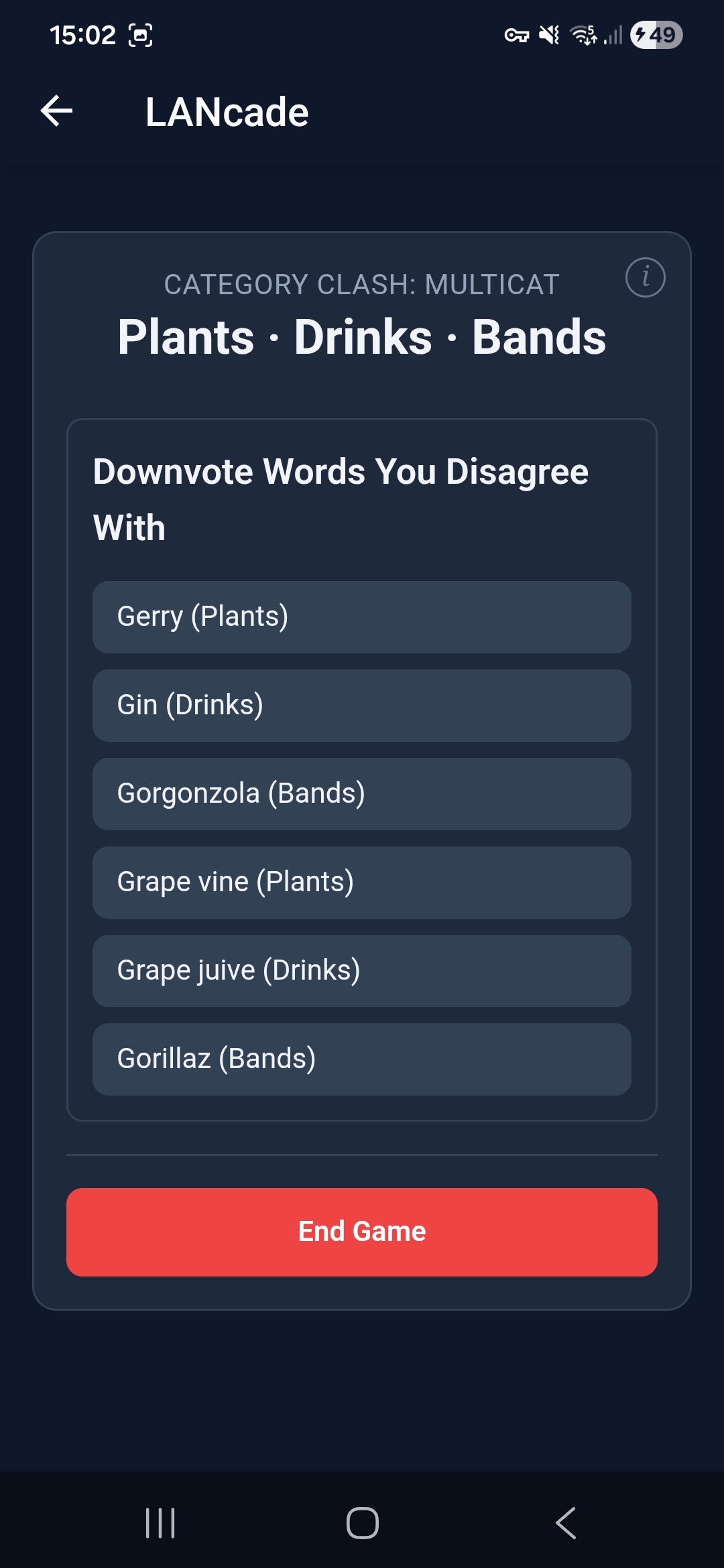
The admin can monitor progress.
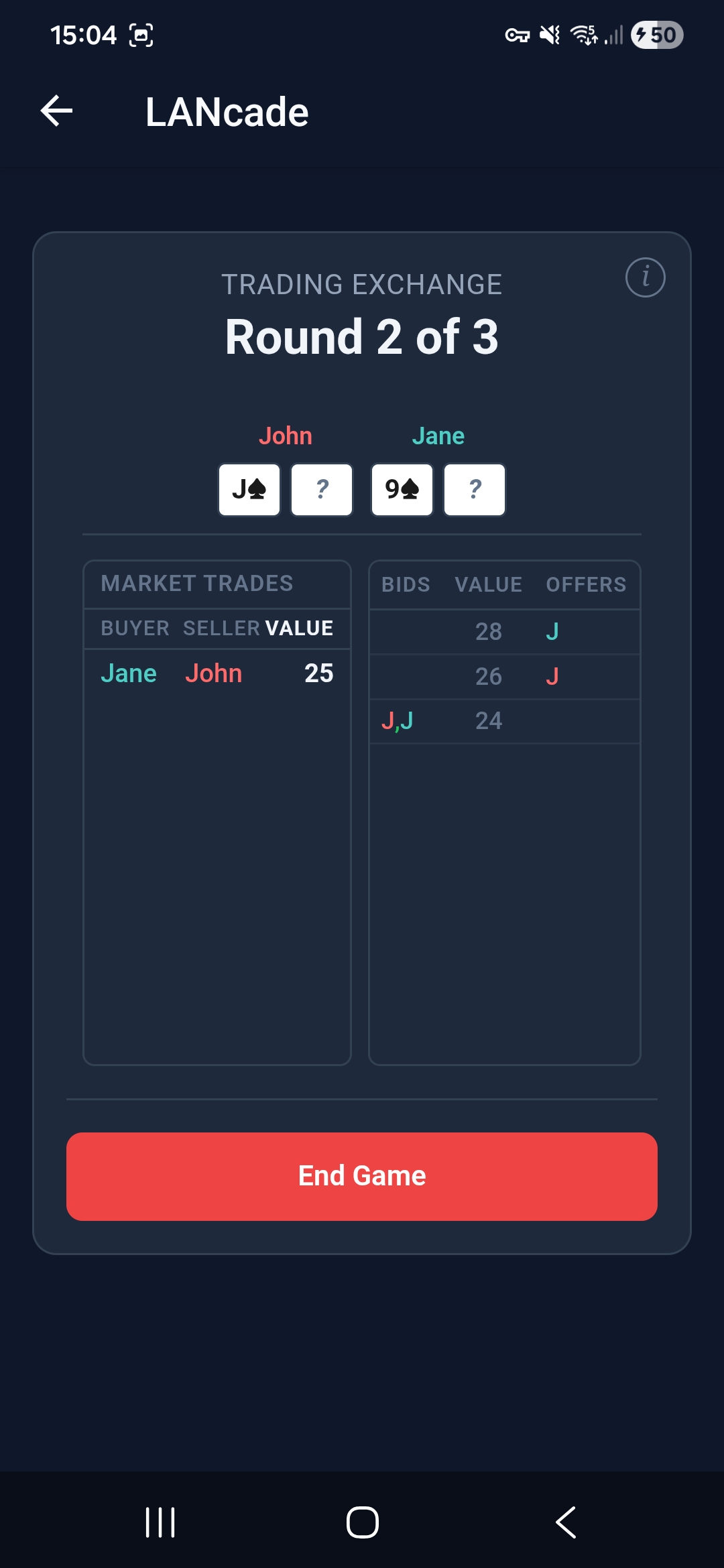
Different games give different view-only views.